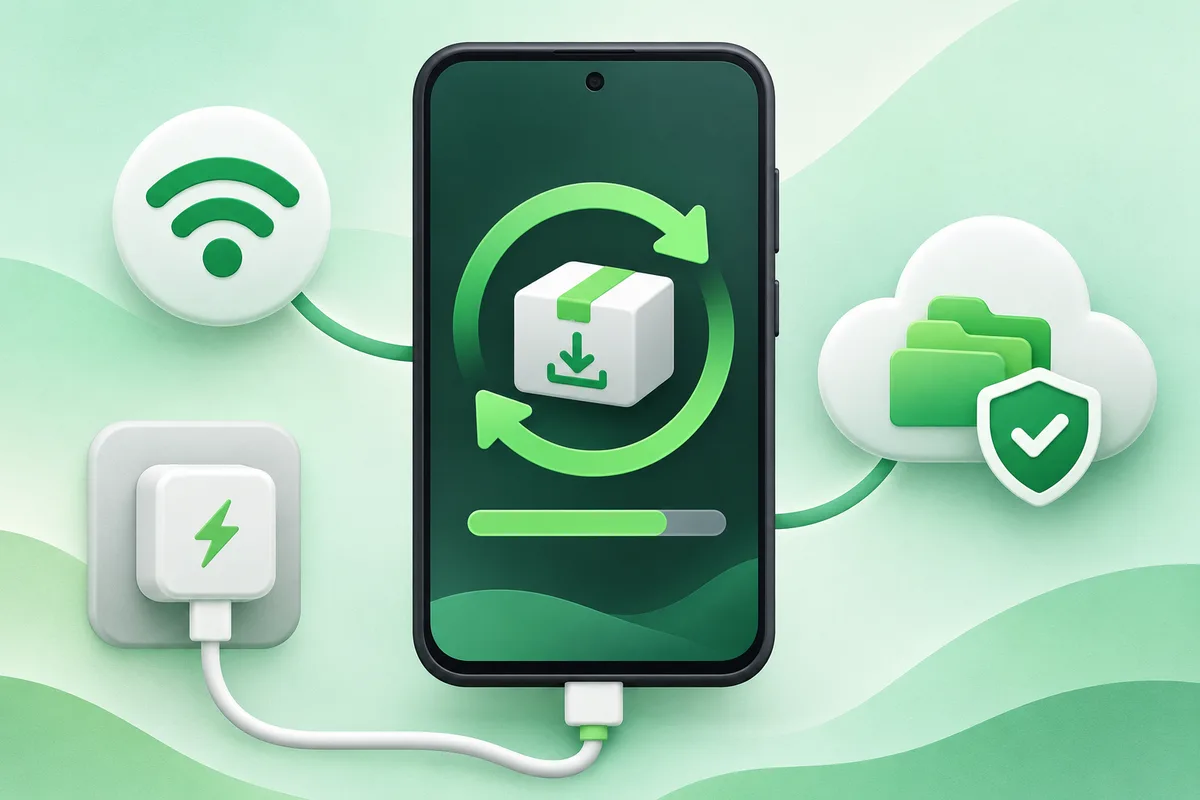
Back up the old phone, connect both devices during setup and keep the old phone untouched until photos, messages, authentication and local files are verified.
Steps
- Update and back up the old phone
- Charge both phones and connect them during new-phone setup
- Select the data and accounts to copy
- Verify photos, messages, files and sign-ins before erasing the old phone
Check the result
Test the change before moving on. Android menu names vary across Google
Pixel, Samsung Galaxy, Motorola, OnePlus and other phones, and a carrier or
work profile can also restrict a setting. Use Settings search when a label is
different and check the support page for the exact model before erasing data,
resetting connections or changing an account.
Privacy and safety
Read every confirmation screen, keep a current backup and grant only the
permissions the task requires. Stop if the phone becomes unusually hot, shows
physical battery damage or asks for a password or payment on an unexpected
site.
Official reference
Android Help: check and update Android is the
baseline reference; the phone maker and carrier may document additional steps.
More from Phones & Updates
Open the complete Phones & Updates hub,
or continue with a related walkthrough: