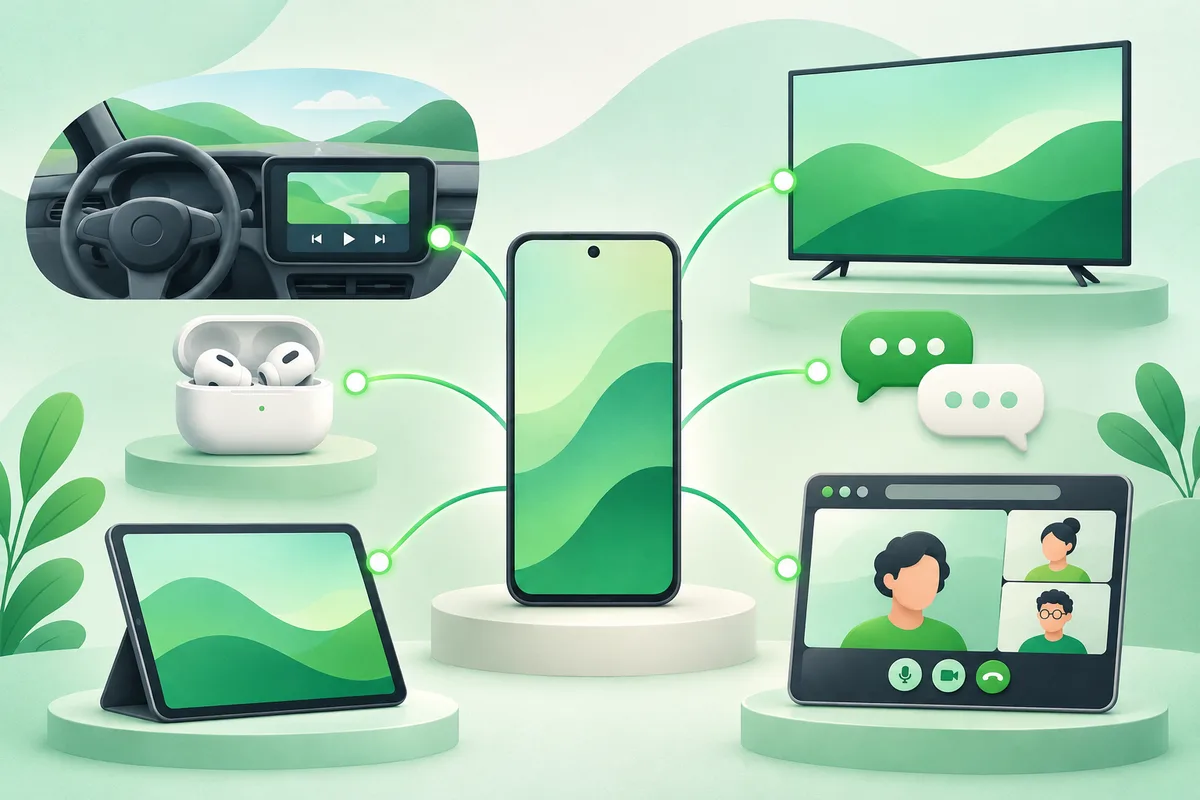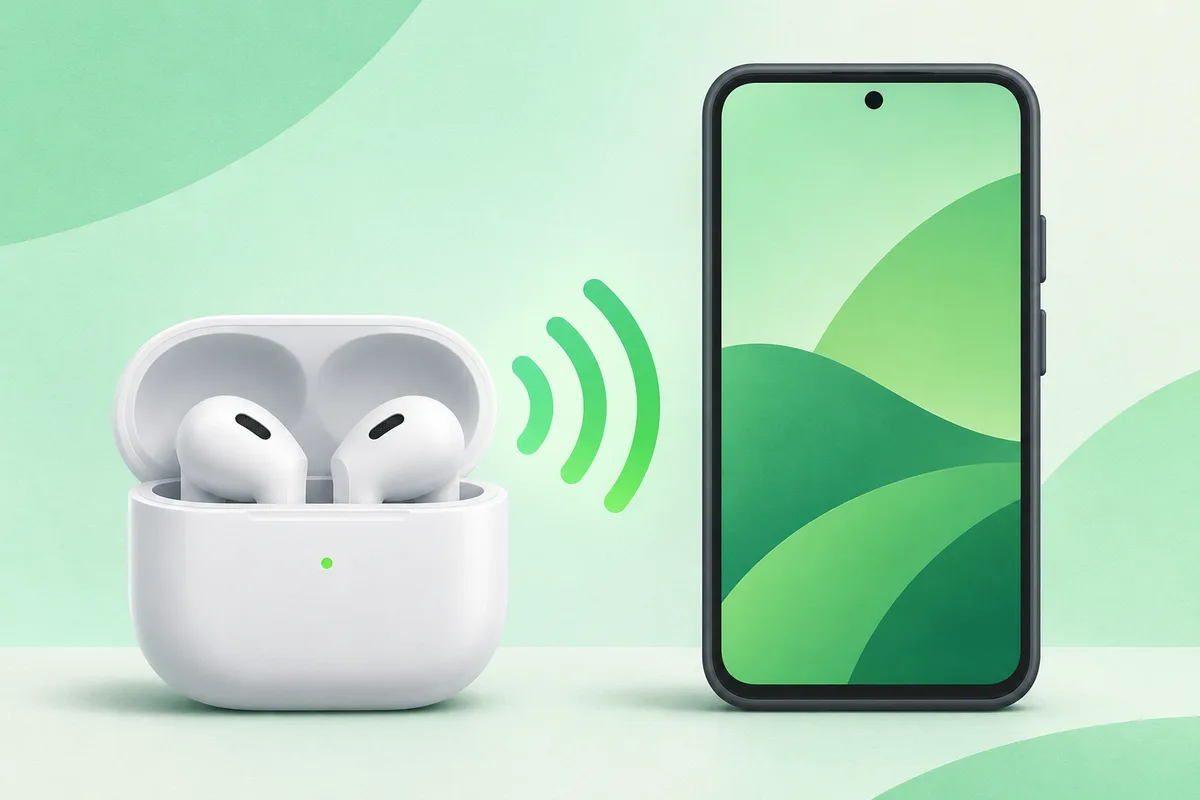
AirPods connect to Android as standard Bluetooth earbuds. Audio and microphone functions work, but some Apple features such as automatic device switching and native battery pop-ups may not.
Quick answer: Put both AirPods in the case and open the lid.
Steps: Pair AirPods With Android
- Put both AirPods in the case and open the lid.
- Hold the case setup control until the status light flashes white.
- On Android, open Settings, Connected devices, then Pair new device.
- Select the AirPods and approve the Bluetooth pairing request.
- Test media and call audio, then adjust Bluetooth device settings if needed.
Before you finish
- The control location differs on some newer AirPods cases.
- Pairing does not add the earbuds to Google's Find Hub.
- Third-party battery apps require extra access; use only one you trust.
If the menu is different
Use the search box at the top of Settings and search for the key control in
this guide. Pixel uses Google's labels; Samsung, Motorola, OnePlus and other
manufacturers may move the same control or rename one level of the menu. Check
the support page for your exact model before using a reset or erase command.
Keep going in this Android hub
See the complete guide for this topic,
or continue with one of these closely related Android walkthroughs: