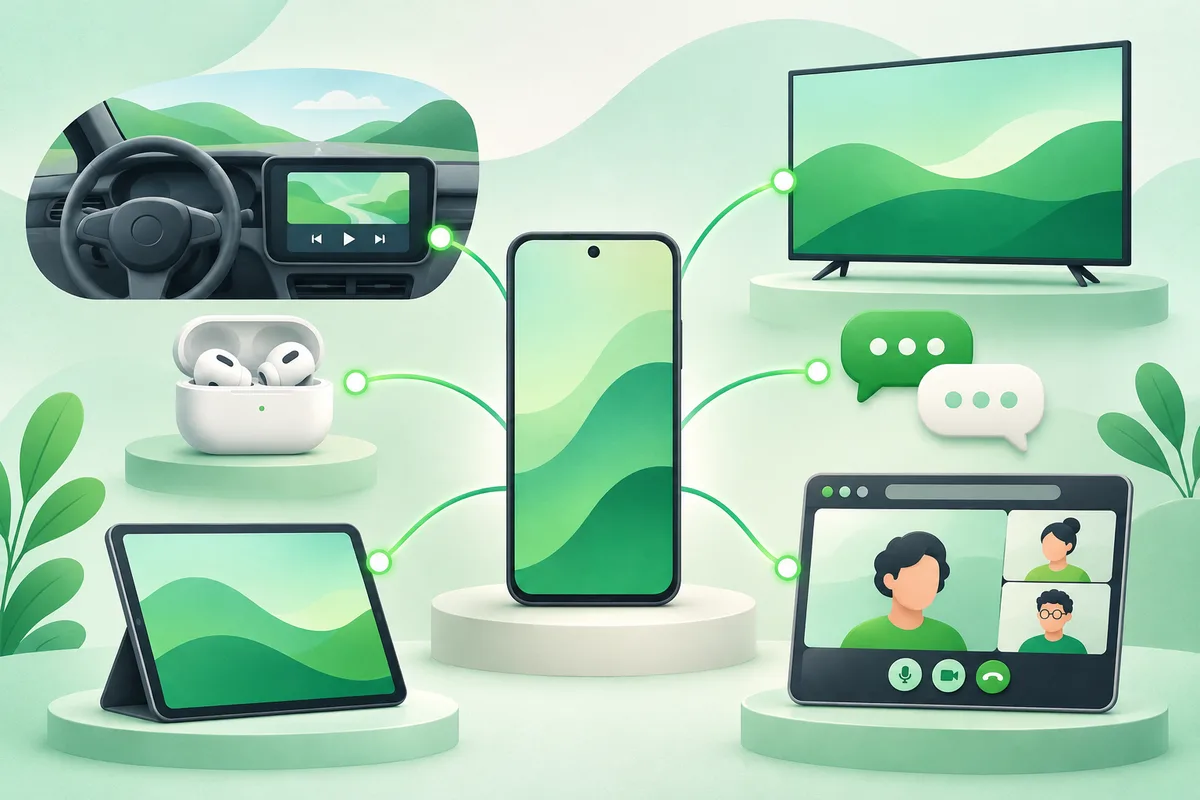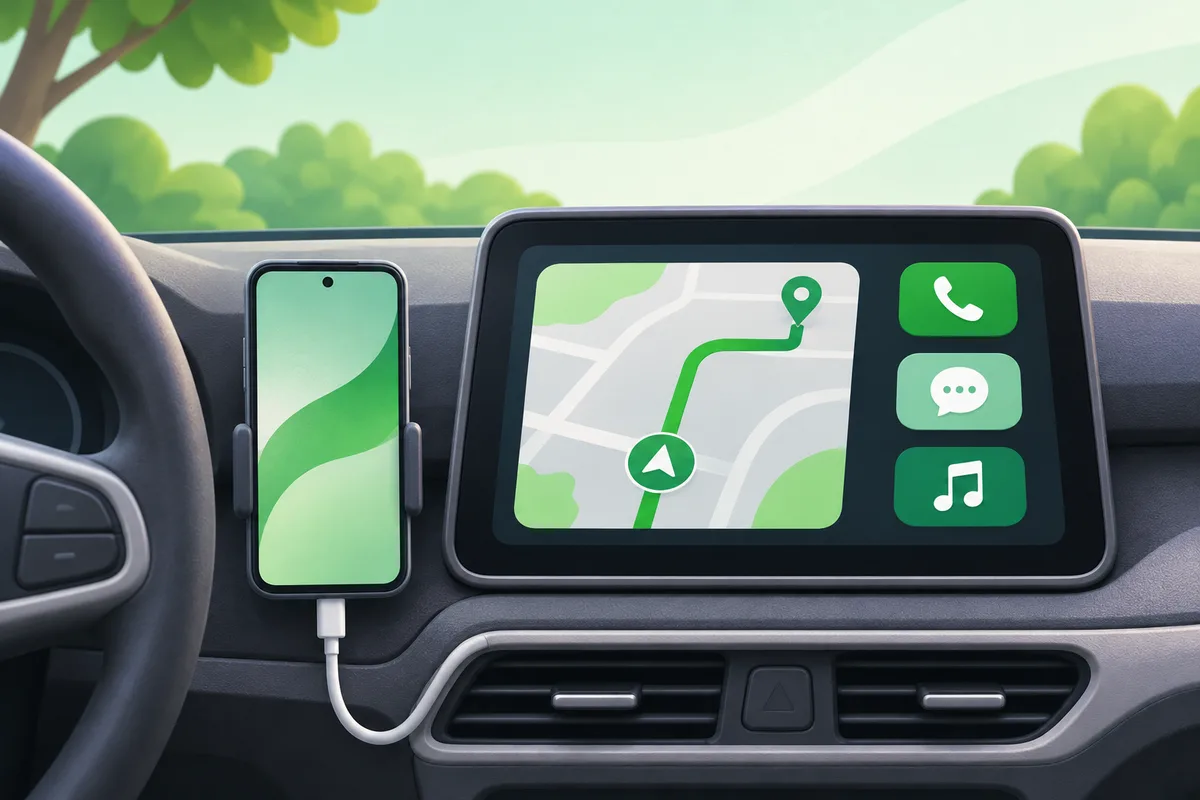
Android Auto projects a driving-focused interface from a compatible Android phone onto a compatible car display. It supports navigation, calls, messages and audio through touch, steering-wheel controls and voice.
Quick answer: Confirm the car or aftermarket receiver supports Android Auto.
What Is Android Auto and How Does It Work?
- Confirm the car or aftermarket receiver supports Android Auto.
- Update the phone, Google apps and the car's infotainment software.
- Connect with a good USB data cable, or pair wirelessly if both devices support it.
- Complete the prompts while parked and grant only the permissions needed.
- Set preferred navigation and audio apps before driving.
Before you finish
- Android Auto is not the same as Android Automotive OS built into a car.
- Wireless support depends on both the phone and vehicle.
- Troubleshoot cables and the car's saved-phone list before resetting the phone.
If the menu is different
Use the search box at the top of Settings and search for the key control in
this guide. Pixel uses Google's labels; Samsung, Motorola, OnePlus and other
manufacturers may move the same control or rename one level of the menu. Check
the support page for your exact model before using a reset or erase command.
Official reference
Google Android Auto Help. Menu names can differ by phone maker.
Keep going in this Android hub
See the complete guide for this topic,
or continue with one of these closely related Android walkthroughs: