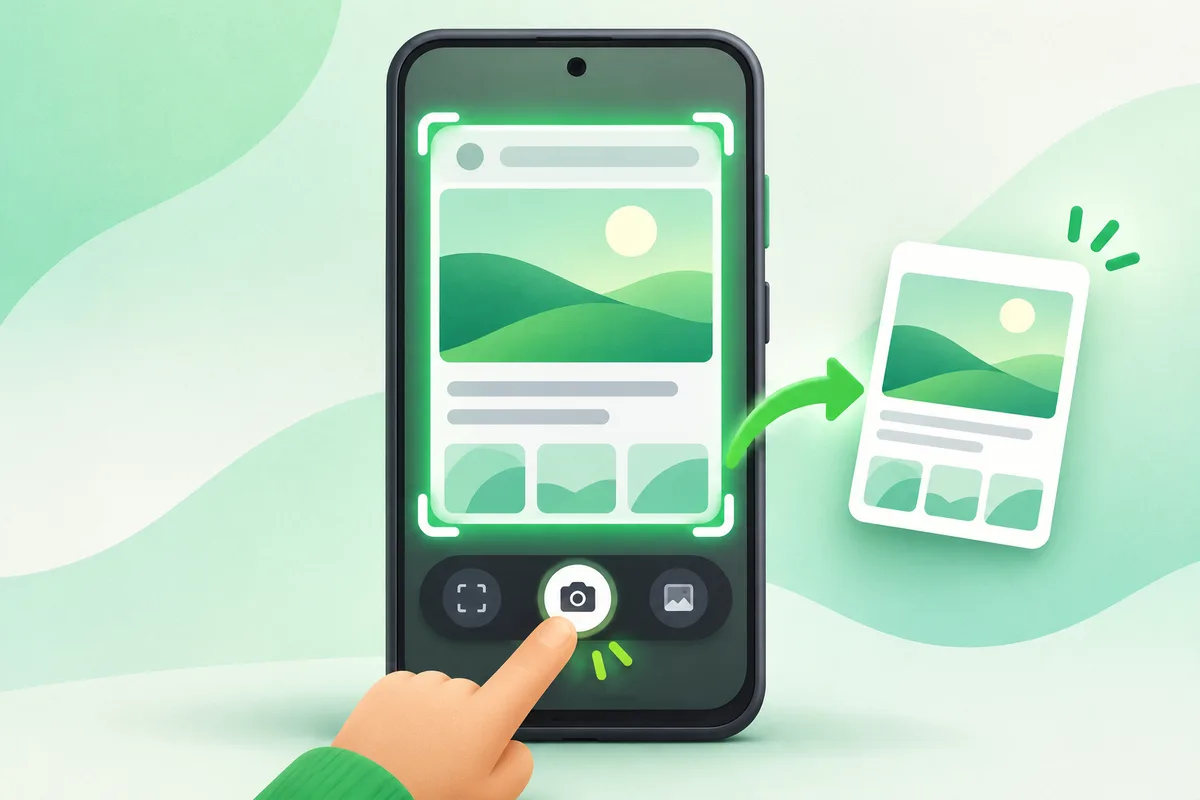
On most Android phones, press Power and Volume Down together. A preview appears so you can edit, share or capture more of a scrolling page.
Quick answer: Open the screen you want to capture.
Steps: Take a Screenshot on Android
- Open the screen you want to capture.
- Press Power and Volume Down at the same time, then release.
- Tap the preview to crop, mark up or share the image.
- Choose Capture more when Android offers a scrolling screenshot.
- Find saved captures in Photos under Screenshots.
Before you finish
- Apps can block screenshots on sensitive screens.
- Pixel, Samsung and other phones also offer gesture or accessibility shortcuts.
- A scrolling capture is available only on compatible screens.
If the menu is different
Use the search box at the top of Settings and search for the key control in
this guide. Pixel uses Google's labels; Samsung, Motorola, OnePlus and other
manufacturers may move the same control or rename one level of the menu. Check
the support page for your exact model before using a reset or erase command.
Official reference
Google Android Help: screenshots and screen recording. Menu names can differ by phone maker.
Keep going in this Android hub
See the complete guide for this topic,
or continue with one of these closely related Android walkthroughs: