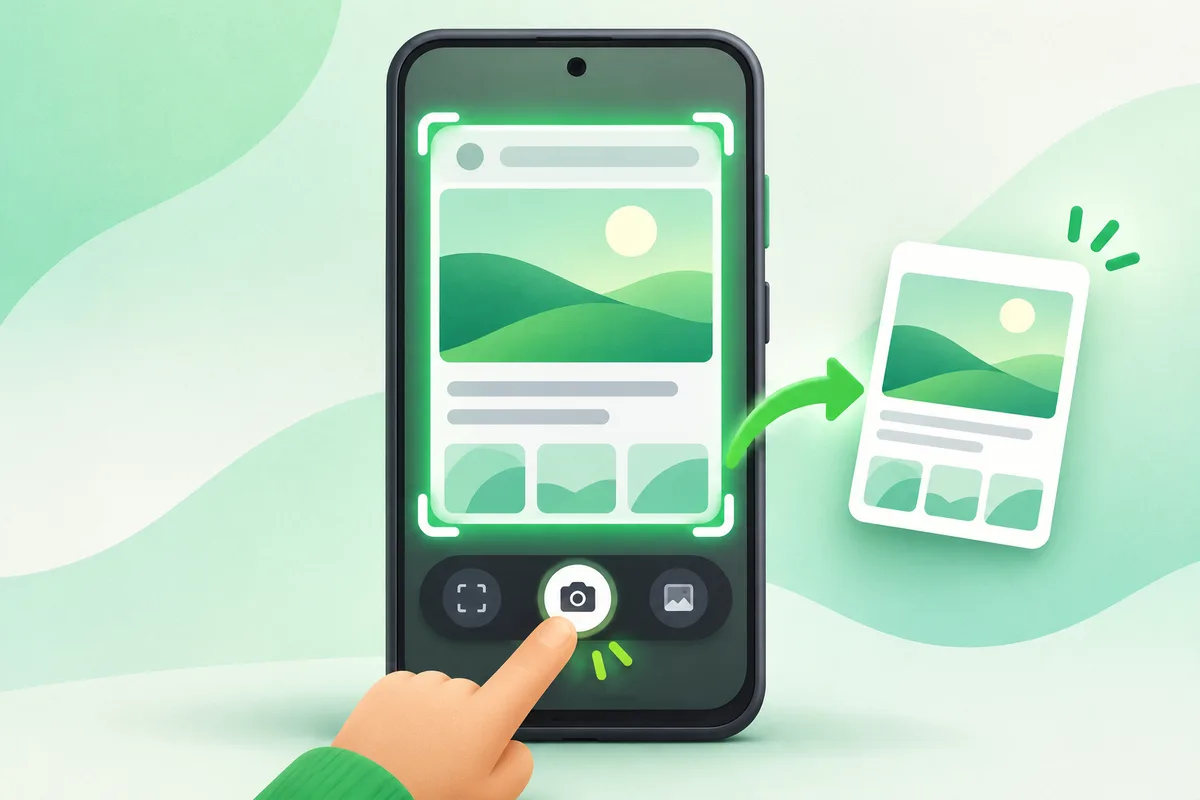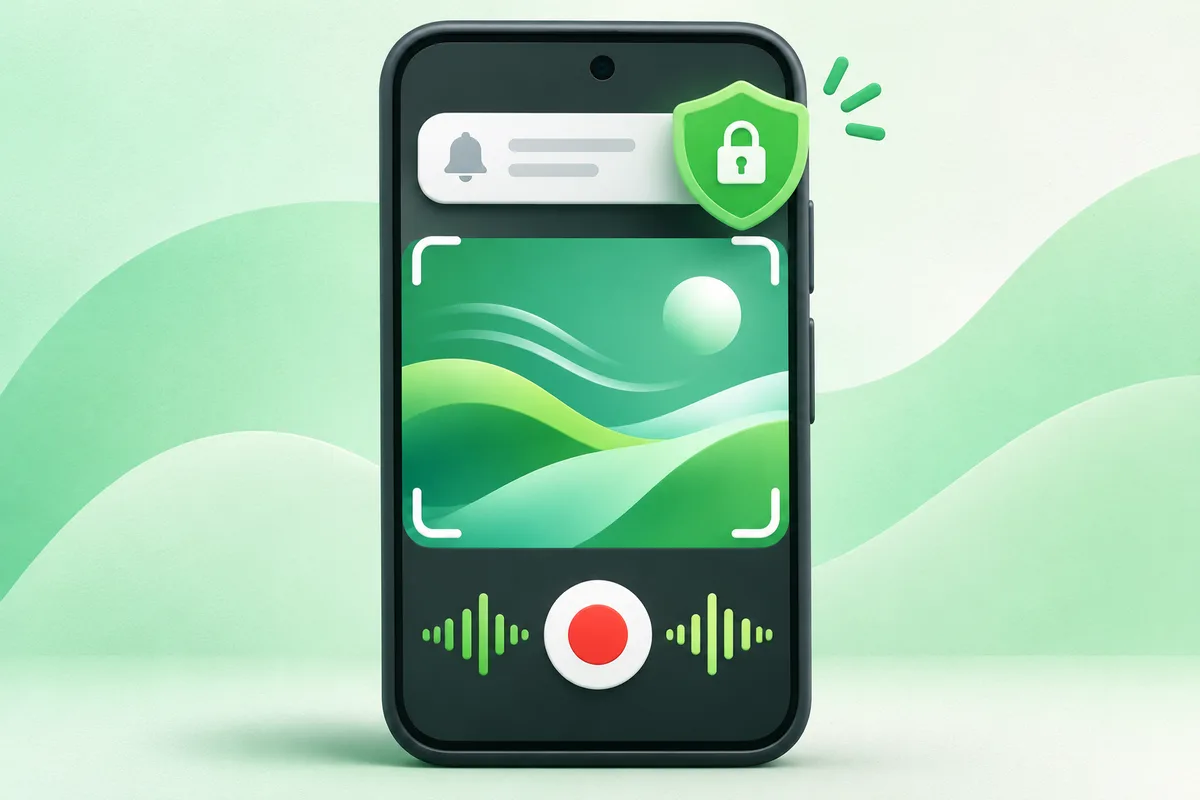
Use Screen record in Quick Settings to capture the display, with optional device audio, microphone audio and touch indicators.
Quick answer: Swipe down twice to open the full Quick Settings panel.
Steps: Screen Record on Android
- Swipe down twice to open the full Quick Settings panel.
- Tap Screen record; edit the panel if the tile is hidden.
- Choose the audio source and whether to show touches.
- Start recording after checking that private notifications are hidden.
- Stop from the notification shade and review the video before sharing.
Before you finish
- Banking, streaming and work apps may hide protected content.
- Device audio support varies by Android version and app.
- Turn on Do Not Disturb first if notifications could reveal private information.
If the menu is different
Use the search box at the top of Settings and search for the key control in
this guide. Pixel uses Google's labels; Samsung, Motorola, OnePlus and other
manufacturers may move the same control or rename one level of the menu. Check
the support page for your exact model before using a reset or erase command.
Official reference
Google Android Help: screenshots and screen recording. Menu names can differ by phone maker.
Keep going in this Android hub
See the complete guide for this topic,
or continue with one of these closely related Android walkthroughs: