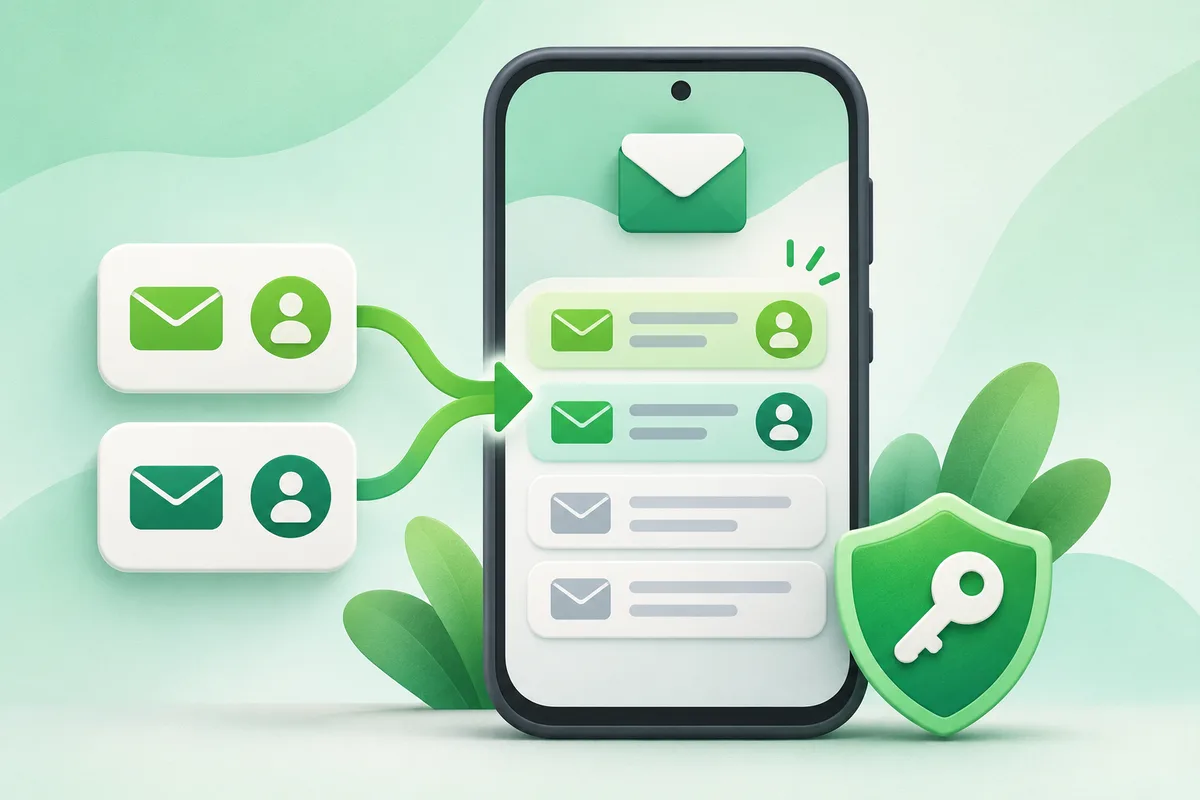
Add another Google Account from Gmail or Android Settings, then choose which account is active from the profile switcher. Each account keeps its own inbox and sync settings.
Quick answer: Open Gmail and tap the profile picture.
Steps: Add Another Gmail Account on Android
- Open Gmail and tap the profile picture.
- Tap Add another account and choose Google.
- Sign in and complete any two-step verification.
- Open the profile switcher to change inboxes, or choose All inboxes for a combined view.
- Review sync, notification and backup settings for the new account.
Before you finish
- Adding an account can also make its contacts, calendar and Drive data available to the phone.
- Use a work profile when an employer requires managed separation.
- Removing an account from the phone does not delete the Google Account itself.
If the menu is different
Use the search box at the top of Settings and search for the key control in
this guide. Pixel uses Google's labels; Samsung, Motorola, OnePlus and other
manufacturers may move the same control or rename one level of the menu. Check
the support page for your exact model before using a reset or erase command.
Keep going in this Android hub
See the complete guide for this topic,
or continue with one of these closely related Android walkthroughs: