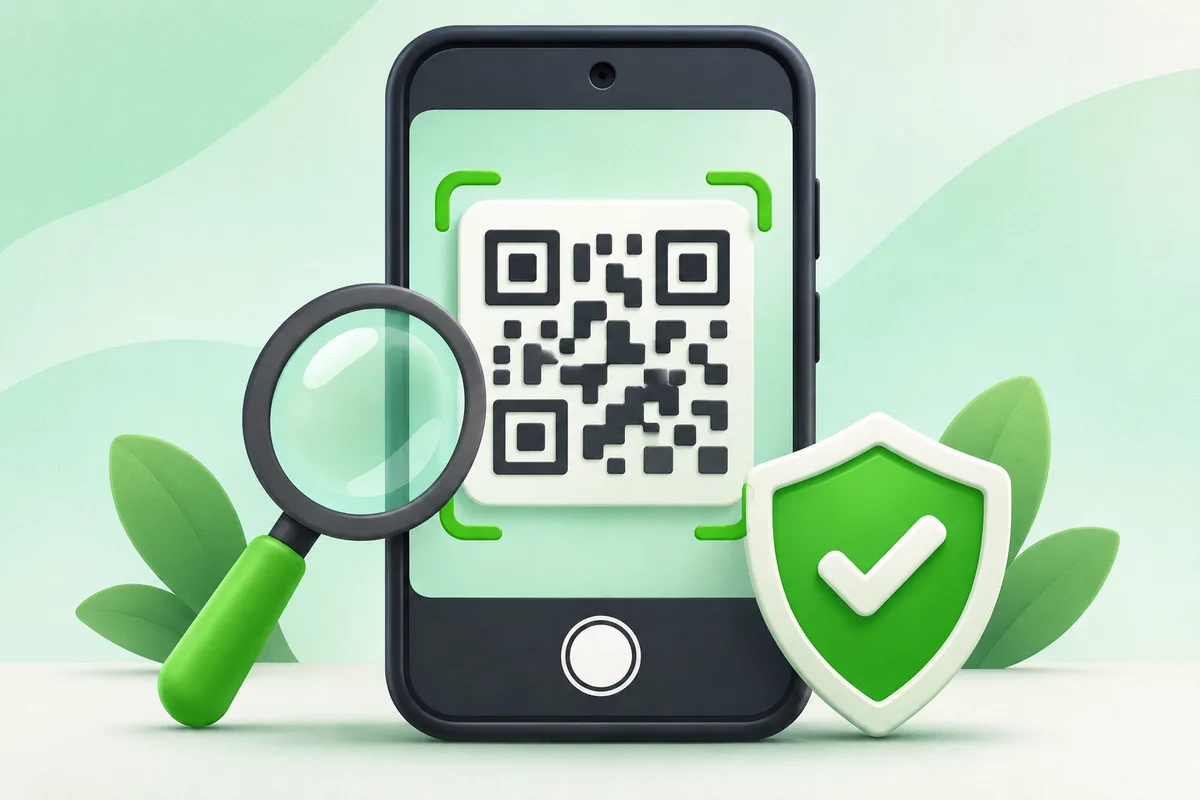
Point the Camera app at the code and wait for a link banner. If that does not work, use Google Lens from the camera or Photos app.
Quick answer: Open Camera and frame the full QR code in good light.
Steps: Scan a QR Code on Android
- Open Camera and frame the full QR code in good light.
- Wait for a banner, then read the destination before tapping it.
- For a code in an image, open the screenshot in Google Photos and tap Lens.
- If nothing appears, enable QR scanning in camera settings or use the Quick Settings scanner.
- Close the page if the domain, request or download looks unexpected.
Before you finish
- A QR code is only a compact way to store text or a link; it is not proof that the destination is safe.
- Never enter a password after scanning a code you did not expect.
- You do not normally need a third-party QR scanner app.
If the menu is different
Use the search box at the top of Settings and search for the key control in
this guide. Pixel uses Google's labels; Samsung, Motorola, OnePlus and other
manufacturers may move the same control or rename one level of the menu. Check
the support page for your exact model before using a reset or erase command.
Keep going in this Android hub
See the complete guide for this topic,
or continue with one of these closely related Android walkthroughs: