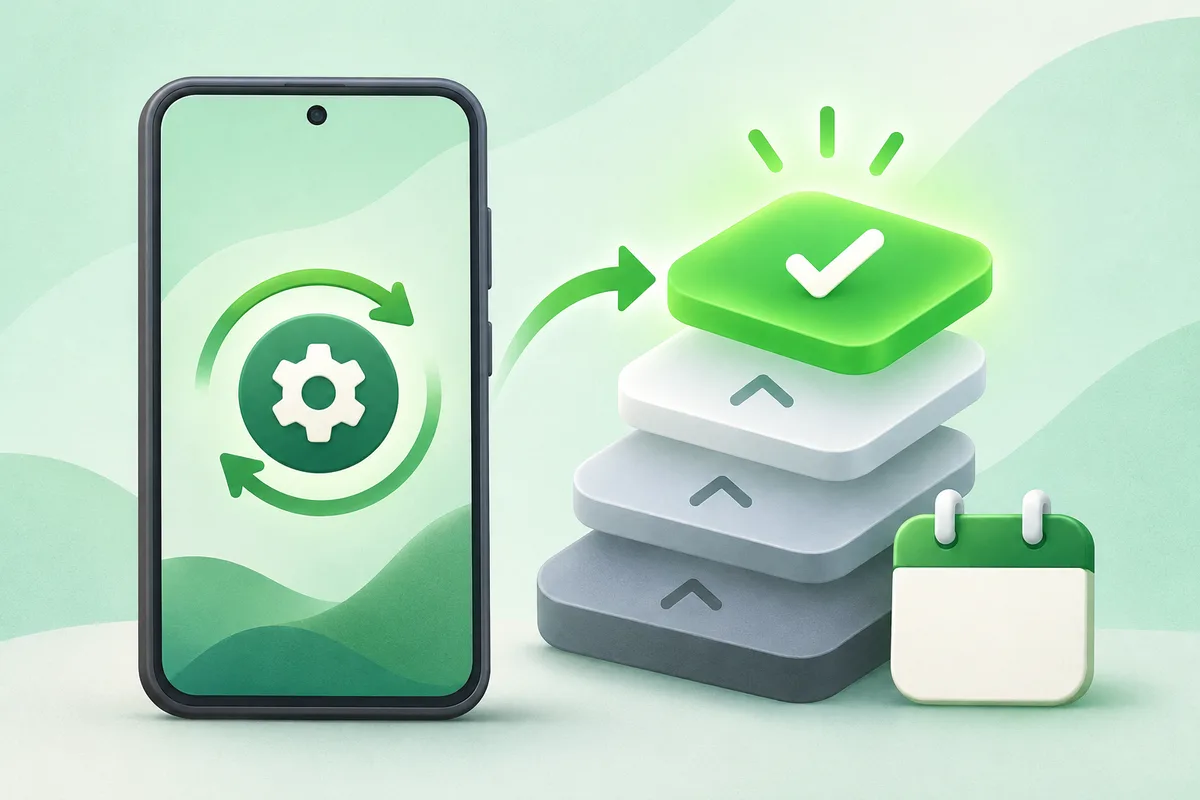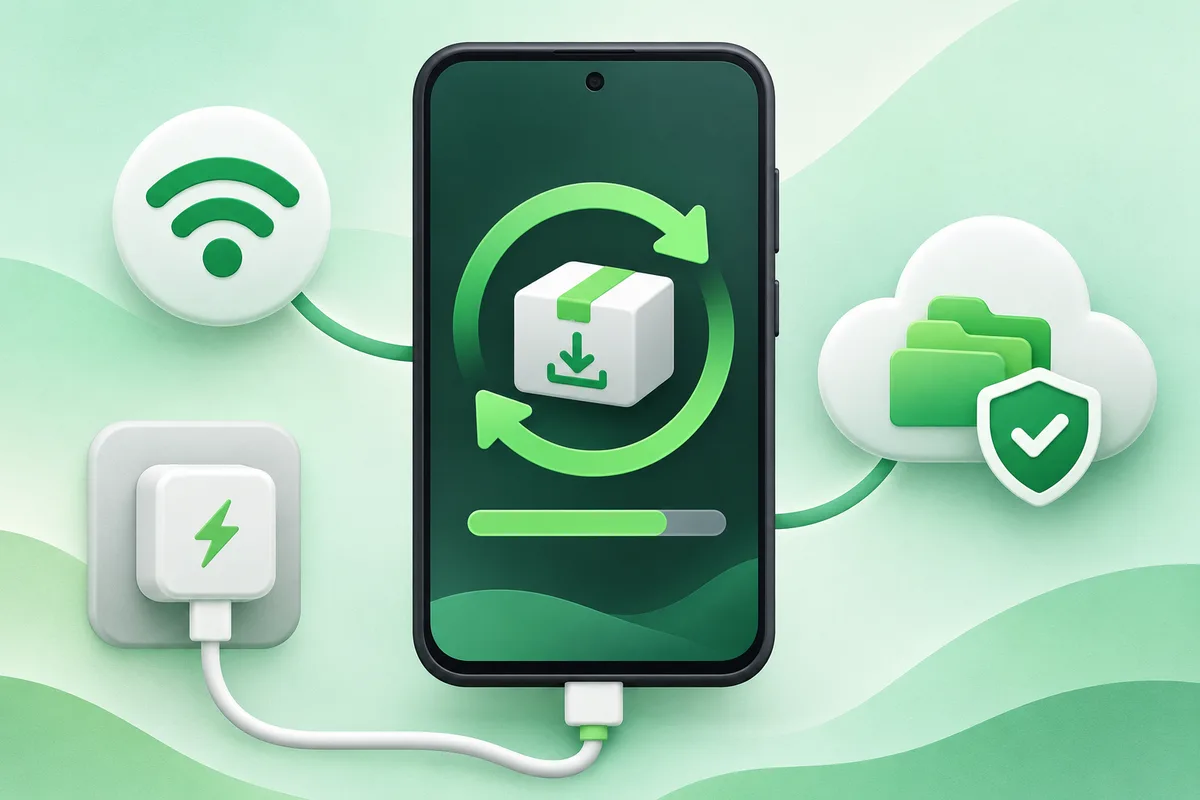
Use Settings to check for system updates, then install while the phone is backed up, charged and connected to dependable Wi-Fi. Also check the separate Google Play system update.
Quick answer: Back up important data and confirm there is enough free storage.
Steps: Update an Android Phone
- Back up important data and confirm there is enough free storage.
- Open Settings, System, then Software update or System update.
- Download and install the offered update.
- Restart when prompted and leave the phone connected to power.
- Search Settings for Google Play system update and install any separate update there.
Before you finish
- A carrier phone can receive an update later than an unlocked model.
- Do not interrupt a firmware installation or force the phone off.
- If support has ended, replacing the phone may be safer than unofficial firmware.
If the menu is different
Use the search box at the top of Settings and search for the key control in
this guide. Pixel uses Google's labels; Samsung, Motorola, OnePlus and other
manufacturers may move the same control or rename one level of the menu. Check
the support page for your exact model before using a reset or erase command.
Official reference
Google Android Help: check and update Android. Menu names can differ by phone maker.
Keep going in this Android hub
See the complete guide for this topic,
or continue with one of these closely related Android walkthroughs: